Category Archives: UNIX & Linux How Tos and Tutorials

Securing the Oracle Solaris 11 Operating System

Solaris 11 is the latest Operating System in the Solaris server OS range from Oracle, previously Sun Microsystems. It incorporates many features from Solaris 10 such as the Service Management Framework, but also pulls a lot from the now defunct OpenSolaris project including a new packaging system and a whole new suite of *adm administrative commands to configure the operating system.

This article will cover security configuration of the OS after a standard text-based installation. I’m using Solaris 11.1 x86_64 running as a VMware Fusion guest, but almost all of the steps will be applicable for the SPARC architecture too.

Continue reading

Configuring Interface Bonding on Debian (Wheezy)

This is a brief article detailing the steps to configure network interface bonding on Debian Wheezy (7.0 stable). The procedure is very different from RHEL/CentOS. I will be configuring active-backup (i.e. failover) mode bonding - there are other modes available, including round-robin load-balanced, LACP aggregation, etc. Read /usr/share/doc/ifenslave-2.6/README.Debian or http://www.kernel.org/doc/Documentation/networking/bonding.txt for further information.

First, verify via ifconfig that your two slave interfaces are available - I’ll be bonding eth0 and eth1 into a bond called bond0:

Install the ifenslave package:

Next, stop networking. As you’re stopping networking, ensure that you’re connected to your host via a console of some form:

Modify /etc/network/interfaces. Remove (or comment out) any existing configuration for your slave interfaces (eth0 and eth1), and configure your new bond0 interface appropriately:

bond_miimon is the MII link monitoring frequency in milliseconds, and bond_{down,up}delay are the time, in milliseconds, to wait before disabling or enabling an interface in the bond (to safeguard against flapping), and should be a multiple of the bond_miimon value. You can adjust these values to suit your needs. These bond_<parameter> directives correlate to the <parameter> directives passed to the bonding module itself.

Once configured, start networking:

There is no need to fiddle with module loading (editing /etc/modules, creating a file under /etc/modprobe.d, etc.) - the ifenslave-2.6 package deposits scripts to do this for us. Take a look at /etc/network/if-pre-up.d/ifenslave to see this being done.

You can see the other scripts installed by ifenslave-2.6 with a dpkg -L:

Running ifconfig -a should now show the correct network configuration:

You can also view the contents of /proc/net/bonding/bond0 to check the status of the bond:


BIND 10: Configuring DHCP for DHCPv4 Clients

The fourth article in my series covering BIND 10 has nothing to do (directly) with DNS. This one describes how to configure the DHCP4 component of BIND 10 to provided DHCP service for IPv4 clients in my lab network. I used bind10-1.0.0-rc.

There is quite an important caveat to note from the RC release notes:

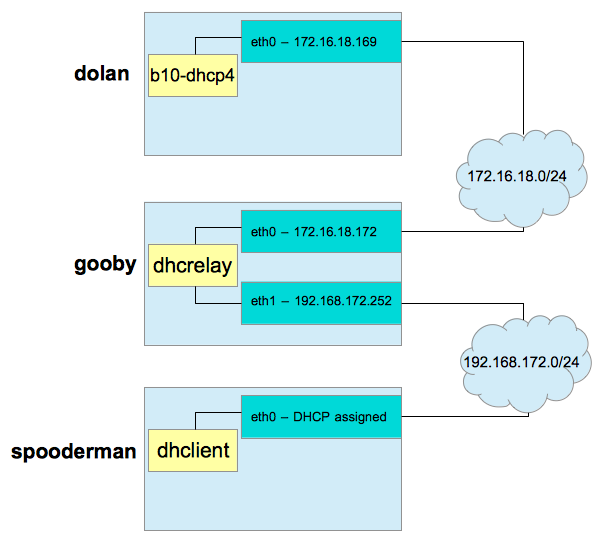
As you can see, DHCPv4 clients must be connected to the DHCP server via a relay. As I have no Cisco devices on my home network running ip-helper or similar, I used dhcrelay to provide DHCP relay services. I configured my network as per the following diagram, utilising three CentOS 6.3 x86_64 VMs:

b10-dhcp4

gooby will provide DHCP service to the 192.168.172.0/24 network via its eth1 interface. spooderman‘s dhclient will come online and make a multicast discovery request. dhcrelay on gooby will relay that message out of eth0 to dolan and b10-dhcp4. b10-dhcp4 will assign an IP address based upon configuration and current leases, and hand the offer back to gooby. dhcrelay will receive this offer, and relay it back out over eth1 via broadcast. spooderman will pick up this offer, and acknowledge it. Once b10-dhcp4 receives the acknowledgment, it commits the lease to the MySQL database. dhclient configures spooderman‘s eth0 interface, and the exercise is complete.

As 172.16.18.0/24 is my NATted network out of my test workstation, VMware provides its own DHCP service on the host OS - ensure this is shut down prior to commencing work. If your networks do not already run a DHCP service, you don’t need to worry about that - if they do, shut them down before proceeding (as long as this isn’t production :/) …

With the network planned and any existing DHCP services disabled, we can continue.

Continue reading

Clustering with DRBD, Corosync and Pacemaker

Introduction

This article will cover the build of a two-node high-availability cluster using DRBD (RAID1 over TCP/IP), the Corosync cluster engine, and the Pacemaker resource manager on CentOS 6.4. There are many applications for this type of cluster - as a free alternative to RHCS for example. However, this example does have a couple of caveats. As this is being built in a lab environment on KVM guests, there will be no STONITH (Shoot The Other Node In The Head) (a type of fencing). If this cluster goes split-brain, there may be manual recovery required to intervene, tell DRBD who is primary and who is secondary, and so on. In a Production environment, we’d use STONITH to connect to ILOMs (for example) and power off or reboot a misbehaving node. Quorum will also need to be disabled, as this stack doesn’t yet support the use of quorum disks - if you want that go with RHCS (and use cman with the two_node parameter, with or without qdiskd).

This article, as always, presumes that you know what you are doing. The nodes used in this article are as follows:

  • 192.168.122.30 - rhcs-node01.local - first cluster node - running CentOS 6.4
  • 192.168.122.31 - rhcs-node02.local - second cluster node - running CentOS 6.4
  • 192.168.122.33 - failover IP address

DRBD will be used to replicate a volume between the two nodes (in a Master/Slave fashion), and the hosts will eventually run the nginx webserver in a failover topology, with this example having documents being served from the replicated volume.

Ideally, four network interfaces per host should be used (1 for “standard” node communications, 1 for DRBD replication, 2 for Corosync), but for a lab environment a single interface per node is fine.

Let’s start the build …

Continue reading

Securing CentOS and Solaris 11 with Puppet

Puppet is system administration automation software from Puppet Labs (http://puppetlabs.com). It has gained a lot of popularity, and rivals other automation/orchestration software such as Chef and Ansible.

In this article, I will detail how security can be managed on CentOS 6.x and Solaris 11.1 hosts with Puppet 3.x. Some familiarity with Puppet or some other automation software, as well as a Linux/UNIX system administrator audience, is assumed.

The topology being used for the examples given in this article is shown in Figure 1.

puppet-centos-sol11

Figure 1. Example Puppet topology

As you can see, centosa is the Puppet master. Four hosts will contact it for configuration, including itself. There are three CentOS hosts in total (centos[a-c]) and a single Solaris host (sol11test). We will start with server and agent installation, then move on to cover various Puppet configuration tasks, and develop our own security module to deploy a set of security configuration to the hosts.

Whilst this article has been written with CentOS 6.x and Solaris 11.1 in mind, the techniques utilised should translate to RHEL/OEL 6.x and Solaris 10 without many changes. In case of doubt, consult the relevant security guide for your operating system at http://cisecurity.org.

Continue reading

Adding SCSI Controller / SCSI Disks to KVM-based Guests

Following on from my previous article I wanted to add a SCSI disk to a KVM-based guest (hostname: mars). The guest was installed via kickstart with all volumes on /dev/vda. I’d seen conflicting reports of SCSI support (the fact you can’t add the SCSI controller/disks through virt-manager, for example) so I wanted to create a SCSI disk and attach it to the host at /dev/sda.

I first used my new best friend fallocate to fast-allocate the required image:

Next, I created the appropriate XML configuration for the new disk device:

Trying to attach this device via virsh yielded the following unpleasantness:

OK - let’s jump onto the guest and see what’s going on. First, I installed lspci and lsscsi so that I could diagnose the issue …

… and ran lspci:

OK - so there is a SCSI controller available, but it’s for the virtio block devices. Looking at the Red Hat Documentation we need to add a SCSI controller of type virtio-scsi. This can also be confirmed by the lack of output from the following command:

Let’s create a simple XML configuration file for our new SCSI controller:

And add it to our guest configuration:

Dumping the guest domain’s XML should now show the controller added to the configuration:

On the guest, lspci should show the new controller added:

The controller appears as “Device 1004“. I was then able to add the disk device as an appropriate SCSI drive:

And on the guest, fdisk proves it’s there:

As does a quick probe with lsscsi:

As I like making things difficult for myself, I’ll be placing a btrfs filesystem on this and playing around with volumes - but that’s something for another article :)

It’s worth noting that whilst the VM configuration within virt-manager shows that there is now a SCSI controller associated with the guest, it still will not allow the creation of SCSI disks - you’ll need to use virsh (at least you will on virt-manager version 0.9.0).

BIND 10: Zone Transfers, TSIG and DDNS

Note: This article was written alongside BIND 10 1.0.0-beta. See this article which covers the major differences to be aware of between 1.0.0-beta, and 1.0.0-rc.

The third article in my series detailing the newest DNS software release from ISC - BIND 10 - will cover the configuration of zone transfers and dynamic DNS, both secured with TSIG. This article assumes you know a little about the new architecture of BIND 10 (I’ve written about it here).

I have two servers configured for this as follows, both running BIND 10 built as per my first article in the series:

No BIND 10 modules other than the default have been enabled at this point, and the servers have been started for the very first time. First, we need to perform some configuration of our master DNS server - ns1.example.com.

Continue reading

Installing Puppet Client on Solaris 11 with OpenCSW

The easiest way to install on Solaris is to obtain the packages from http://OpenCSW.org. OpenCSW uses a tool called pkgutil on top of the existing Solaris toolset to obtain, install and maintain OpenCSW packages.

Continue reading

Configuring Transitive IPMP on Solaris 11

We all know the pain of configuring probe-based IPMP under Solaris, with a slew of test addresses being required, and a long line of ifconfig configuration in our /etc/hostname.<interface> files.

With Solaris 11, there is a new type of probe-based IPMP called transitive probing. This new type of probing does not require test addresses, as per the documentation: “Transitive probes are sent by the alternate interfaces in the group to probe the active interface. An alternate interface is an underlying interface that does not actively receive any inbound IP packets”.

In this article, I will configure failover (active/passive) IPMP on clusternode1 (the first node of a Solaris Cluster I’m building). Interface net0 has an address of 10.1.1.80 (configured at install time), and I’ll be adding this into an IPMP group ipmp0 along with a standby interface, net1. Make sure you are performing these steps via a console connection, as the original address associated with net0 will need to be removed before attempting to add it to an IPMP group.

The first step, ensure that there is an entry in /etc/hosts for the IP address you’re configuring IPMP for:

Next, ensure that automatic network configuration is disabled. In my case it was as I’d configured networking manually during the installation of Solaris 11:

Verify that the appropriate physical interfaces are available. In the following output, I’ll be bonding e1000g0 (net0) and e1000g1 (net1) into a failover IPMP group.

List the current addresses - from the output of ipadm show-addr I can see that I’ll need to delete net0/v4 and net0/v6, otherwise I’ll be unable to add net0 to the IPMP group.

As the net0 IP interface is already created, I only need to create the net1 interface:

I can then create the IPMP group, which I’ll call ipmp0:

Next, enable transitive probing, which is disabled by default:

And configure the appropriate interface (in my case net1) to be a standby interface (as I’m using failover):

Now I can create my IPv4 address on the IPMP group:

Finally, fix the default route. I removed the existing route and added a new default route using the new and correct interface - ipmp0:

You can use ipmpstat to verify the configuration and health of the IPMP group:

Let’s perform a failover test. I’ll disable net0 and ensure that the clusternode1 address fails over:

It works! (and my SSH connection is still active…) - net1 is now active with the correct IP address. Let’s fail it back:

The address has failed back to net0, and again my SSH connection is still active. I can now continue with clusternode2, and the rest of the cluster install.
 

Adding Logging to IPTables under CentOS

Whilst troubleshooting some firewall issues with a CentOS host, I wanted to enable logging. Thankfully, there is a very customisable iptables target - LOG (funnily enough) - that will do this in a few steps.

First, add a new chain with a reasonable name. I chose LOGGING:

Next, review the current iptables configuration to ensure that the chain has been created successfully:

Next, insert a rule at the appropriate point (hence me using --line-numbers above). You could replace the existing REJECT at line 7 in its entirety as its functionality will be moved into the LOGGING chain (where I change it to a DROP anyway):

Add the actual logging rule next. I also use the limit module to add some rate-limiting into the mix. The iptables man page documents both the LOG target and the limit module in great detail. But - here I specify a limit of 10 messages per minute, which is ample for my testing. The log level is set at debug (as per standard syslog log levels).

Finally, we actually DROP the packet (whether it has been logged, or not (if the rate limit has been exceeded)):

OK - let’s check our iptables configuration once again:

Everything looks good. Try telnetting to a bad port, or doing something else the firewall should block, and depending upon your syslog configuration, the DROP message should be logged, for example:

If nothing is broken, save your configuration:

As an aside, if (as with the default rsyslog configuration under CentOS 6.x) nothing is logged, you will need to configure rsyslog appropriately. We specified a --log-level of 7 - which is the debug syslog log level. So we need to configure rsyslog to send messages from the kern facility at log level 7 to somewhere useful. I chose /var/log/firewall.log:

As a final tidy up, don’t forget to update your logrotate configuration, if required: